From a file you just downloaded to a quieter PC, start with what you want to do.
Illustrative examples of Scout. These previews do not search your PC or run commands.
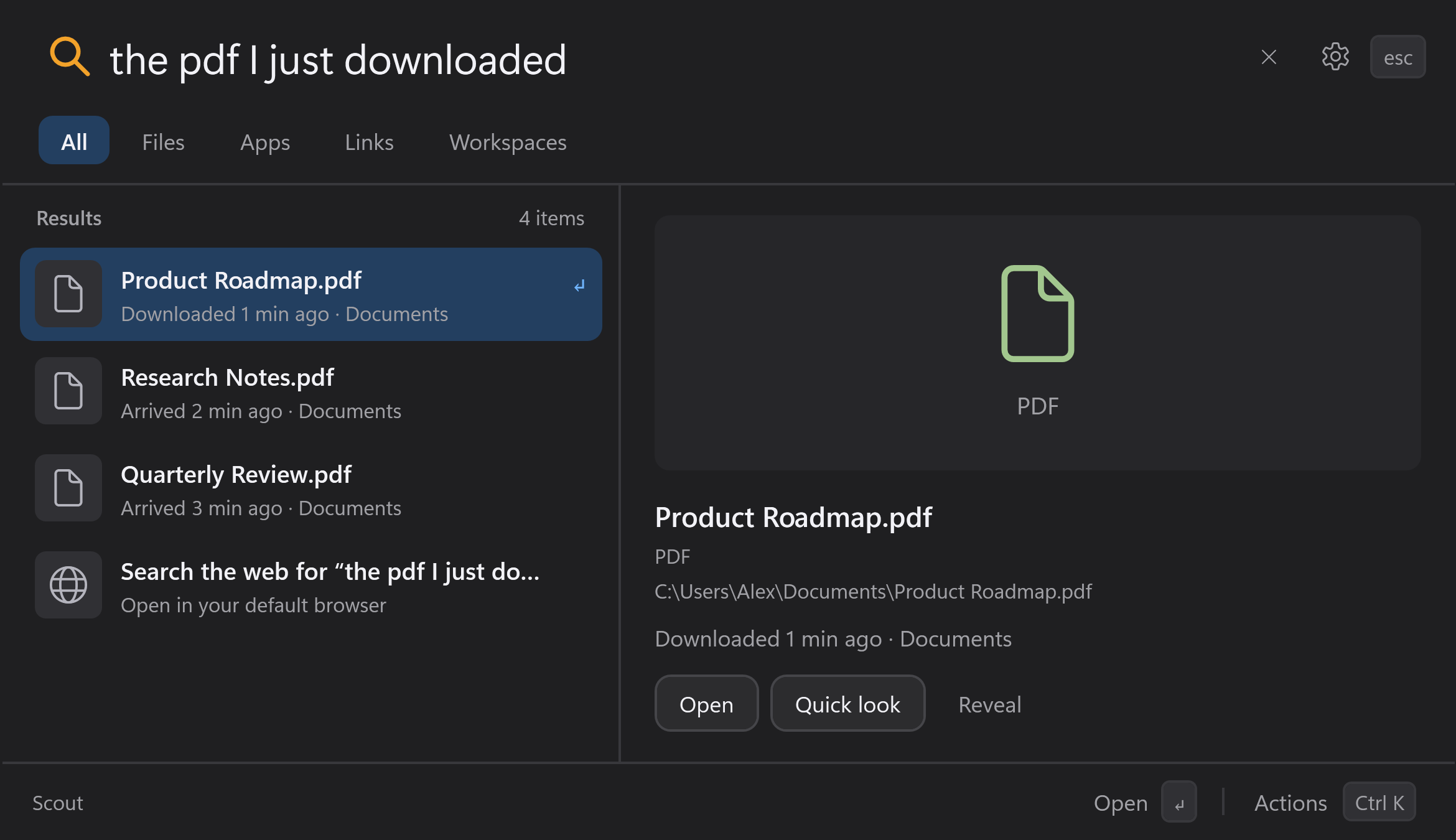
Find the file. Even when the name escapes you.
Search by name, folder, type, or activity. Scout can distinguish when a file was modified, downloaded, or opened, using the records available on your PC.
“the pdf I just downloaded”
Optional Chrome or Edge integration provides completed-download evidence. Without it, Scout labels file-arrival estimates so you can tell the difference.
Try “files I opened this morning.” Matches depend on recorded Windows Recent Items or successful Scout launches.
A folder and timestamp give each match context.
Small tasks. Fewer steps.
Type a supported command, review the action, and press Enter. Everyday controls are right beside your files and apps.
wifi offTurn Wi-Fi off
bluetooth offTurn Bluetooth off
muteMute your sound
volume upRaise output volume
brightness downLower display brightness
darkToggle light / dark appearance
lock screenLock your Windows session
Also turn Wi-Fi or Bluetooth on, unmute, and lower volume. Brightness controls require a supported integrated display; Windows policies and hardware can limit controls.
wifi offesc
AllFilesAppsLinks
Results
Turn Wi-Fi offDisable the wireless radio
↵
You choose when the action runs.
Bring the pieces of your work together.
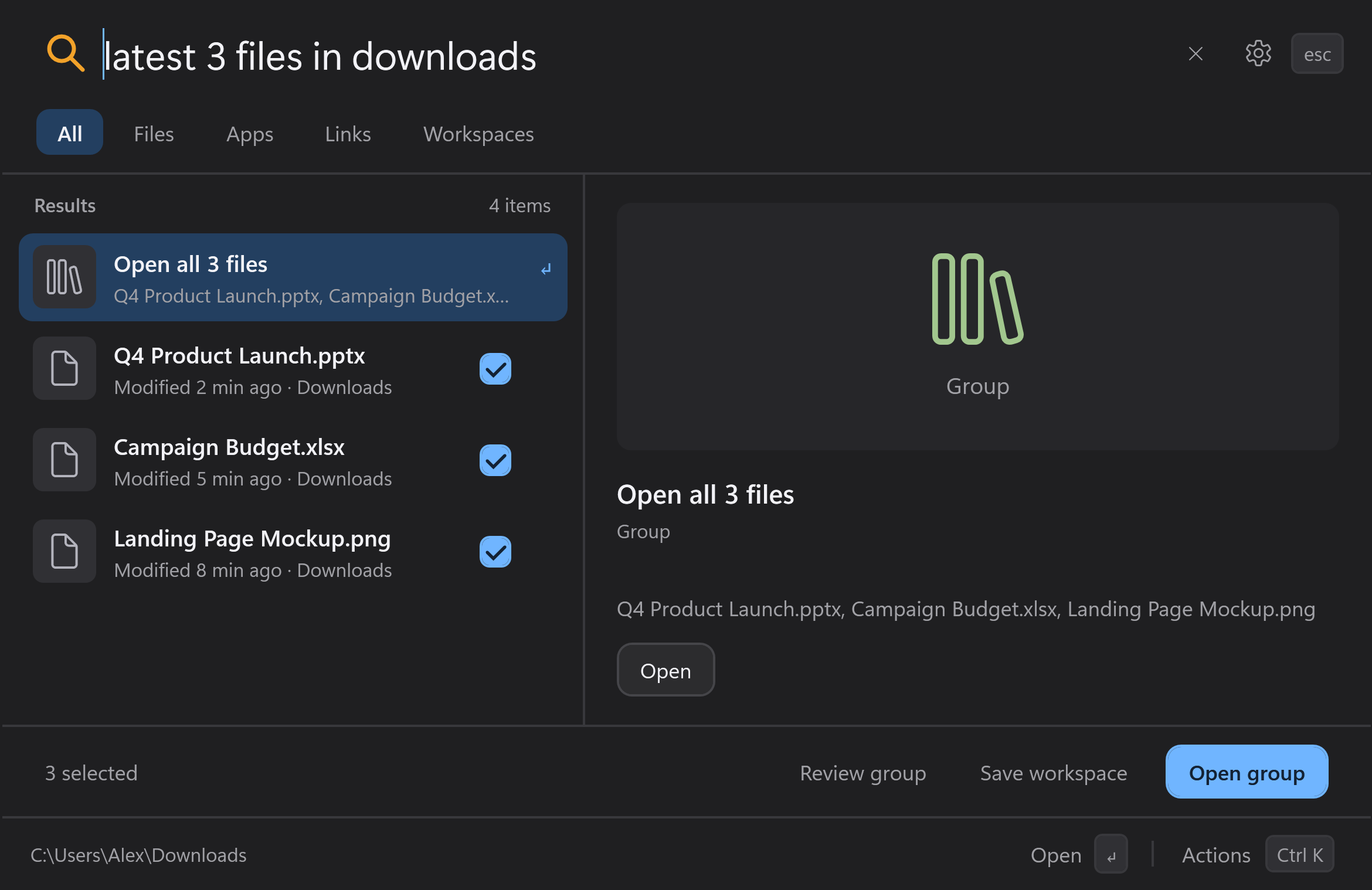
Ask for “latest three files in Downloads.” Review the group, choose its members, and open them together.
Save a workspace with the files, apps, and links you use for a project. Search its name when you want to return to that set.
Workspaces reopen saved items. They do not restore unsaved document edits or an app’s previous window layout.
Review a group now. Save a workspace for later.
Why choose Scout?
Choose the tool that fits how you work. Scout brings activity-based search, visible result evidence, and mixed workspaces into one launcher.
Keyboard launchers for apps, files, and commands. Command Palette supports extensions.
Use Scout’s combination of activity-based queries, result evidence, and workspaces containing files, apps, and links.
Tool names link to official documentation. This is a workflow comparison, not a speed or accuracy benchmark. Windows features vary by device; extensions can add capabilities to other launchers.
The everyday essentials, within reach.
Find something, check it, and take the next step without leaving the launcher.
Look before you open
Preview PDFs, images, supported text, and Office document text. Reveal a file in Explorer or copy its path.
Ctrl + Space to preview
Narrow the search
Search selected locations, filter by file type, and find folders—including empty ones. Optional content search covers supported documents and source files.
/pdf roadmap · /folder projects
Calculate and copy
Work out a percentage or a quick calculation. Press Enter to copy the result into whatever you’re working on.
15% of 240=36
Control your PC
Manage Wi-Fi, Bluetooth, sound, supported display brightness, and appearance. Lock your screen or open Windows notification settings.
unmute · bluetooth on
Your PC. Your choices.
Your index, pins, workspaces, and launch history stay on your PC. Choose the folders Scout searches and the optional features you enable.
Core search and system commands work without optional AI. Every launch or command requires Enter or an explicit Open action.
Browser history is optional
Enable Chrome and Edge separately to include visited links and completed downloads. Scout does not read incognito data or cookies.
Content search is optional
Supported document and source text is indexed only in selected folders. Extracted body text stays local and is never sent to the model. Turning content search off clears its index.
Local AI is optional
The runtime and model are separate downloads. Inference runs on your PC after setup. Performance depends on your hardware; descriptive matches can be imperfect.
Make room for your next task.
Install Scout for your Windows account, then press Ctrl + Space to get started.
Unsigned beta. Windows may show an unknown-publisher or SmartScreen warning. Download from the Scout GitHub release and check the checksum before choosing to proceed. Updates are manual.
A few things to know
How do I install, open, and quit Scout?
Run Scout-Setup.exe and follow the prompts. Setup installs for your account without admin access, adds Scout to Start, and opens it when finished.
Press Ctrl + Space to open the panel. Closing the panel leaves Scout in the notification area. Press Ctrl + Q or choose Quit to exit.
No. Core search, supported folder and activity queries, calculations, system commands, and workspaces work without optional AI on Windows 11 x64. Local AI is off by default and requires separate runtime and model downloads with several GB of storage.
CPU inference is available but can be slow on ordinary laptops. CUDA requires a supported NVIDIA GPU. AI helps refine candidates; it does not guarantee a match or read document body text.
What can content search and previews read?
Optional content indexing covers supported text/source, Office, and OpenDocument files in selected folders. PDF body text and OCR are not indexed. Files larger than 16 MiB are skipped, and extraction is limited to 64,000 characters per file.
PDF page previews are available separately. Office and OpenDocument previews show text rather than the full application layout.
Will every PC control work on my device?
Radio, sound, and display controls depend on Windows policy, drivers, and hardware support. Scout reports failures. Brightness commands target supported integrated displays; external monitors commonly do not support them.
The dark command toggles appearance. Notification commands open Windows notification settings. Commands run only when you explicitly choose them.
How do I update or uninstall?
Updates are manual. Quit Scout, then run the newer installer. For a portable copy, replace the extracted application folder with the newer ZIP’s contents.
Uninstall through Start or Windows Settings → Apps → Installed apps. Settings and workspaces remain in %LOCALAPPDATA%\Scout for a later reinstall. Read the beta 3 release notes.